


A side-by-side installation is supported as of Automation Builder version 2.6.0. Multiple Automation Builder versions can be installed in parallel.
Automation Builder 2.5 or earlier versions can be installed to access previous versions.
When upgrading Automation Builder, an existing project must be converted before it can be used in a newer version.
-
Create a project archive before upgrading Automation Builder. Project archives contain all project data, including data that is not stored with a *.project file, e.g. device description files for third party devices.
“File Project Archive Save/Send Archive...”
-
Use the Automation Builder update notification to start the software update.
⮫ “Automation Builder updates”
or:
-
Download the file from the ⮫ PLC website. All Automation Builder versions are available.
-
Install the new Automation Builder and follow the instructions.
-
Open a previously configured project.
Automation Builder performs an integrity check for the PLC configuration before generating the configuration.
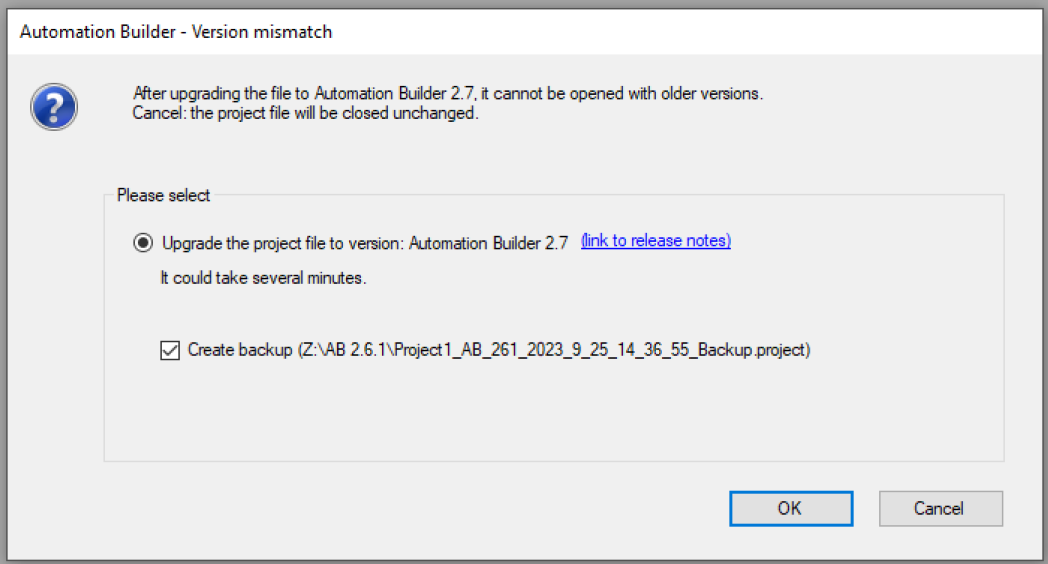
A dialog appears with a request to upgrade the project.
-
Select [OK] to start the project upgrade.
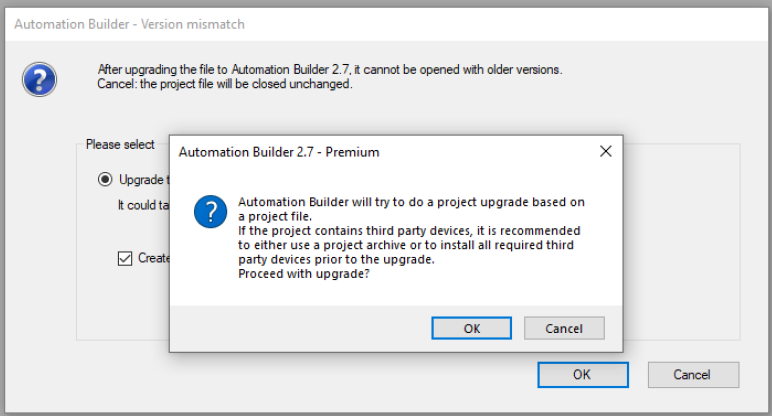
An option for migrating third party devices is displayed.
-
Select [OK] to upgrade third party devices.
If this option was not selected during the upgrade procedure, migration can be performed manually after upgrading Automation Builder.
-
The firmware upgrade of the communication modules is not performed automatically. The firmware must be upgraded using the IP configuration tool in stand alone mode.
Follow the instructions for the firmware upgrade for communication interface modules.
Application example
A project configured for an AC500 V2 PLC can be converted to an AC500 V3 PLC project. The conversion is mainly performed in Automation Builder, however, several steps must be carried out manually. The complete conversion procedure from a V2 project to a V3 project is described in an ⮫ application note.
The application example ⮫ AC500 V2 to V3 migration with Modbus describes how to upgrade Modbus TCP or RTU projects from AC500 V2 to AC500 V3.
A project cannot be downgraded to an earlier Automation Builder version.