-
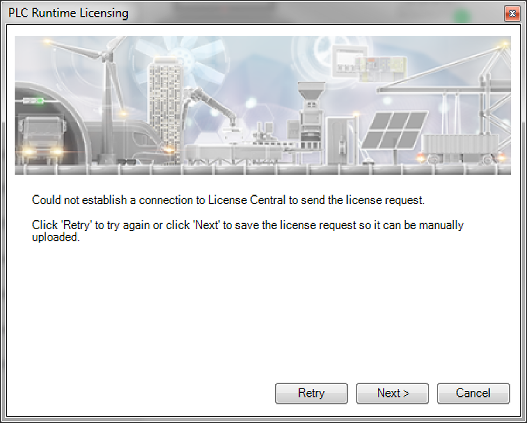
If an error occurs when communicating with the ABB license server, or if Automation Builder is running on a PC without internet connection, then it is possible to manually complete the ABB license server interaction by using another PC (with internet connection).
-
In the error dialog select [Next] and save the license activation request file to a storage location the other PC can access, e.g. a file share.
-
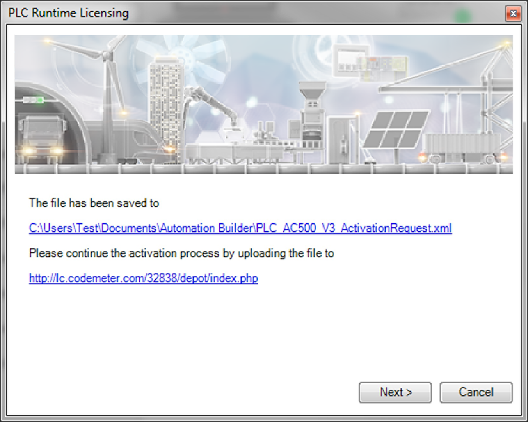
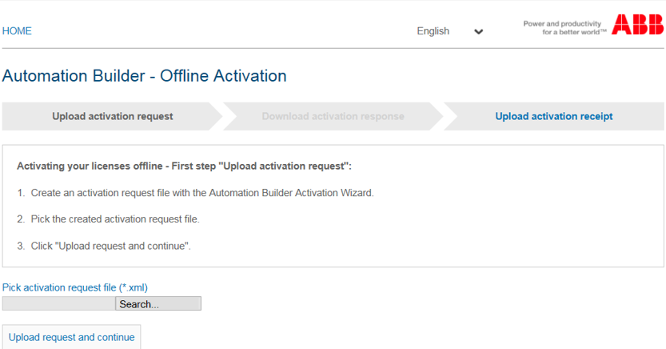
In the dialog the web address of the ABB license server is displayed (⮫ http://lc.codemeter.com/32838/depot/index.php). From the PC with internet connection, upload the runtime license activation request file.
-
After the upload, download and save the license activation file from the ABB license server. Transfer this file to the PC without Internet connection.
-
Select [Next] to continue the license activation process. Click [Cancel] to continue the license activation process at a later time ⮫ Further information.
-
Select [Browse] and select the license activation file (*.WibuCmRaU) from the defined storage location.
The license is validated by the ABB license server and afterwards activated on the PLC device.
If the license shall be used on another PLC device, the installed license can be returned ⮫ “Returning a runtime license”.
-
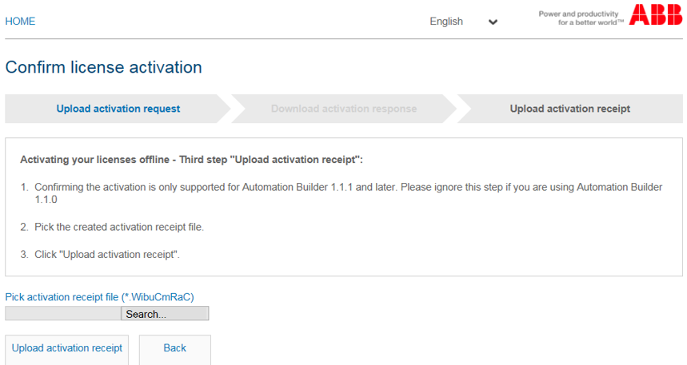
To complete the licensing process, a license receipt file must be uploaded to the ABB license server.
Save the license receipt file and upload it manually from a PC with internet connection to ⮫ http://lc.codemeter.com/32838/depot/index.php.
A license confirmation is returned.