


You can configure a user input for a visualization that causes a referenced visualization to open as a dialog. For example, a user clicks on a button, whereupon a dialog opens requesting the input of values. A dialog is used to collect user inputs and, if it is modal, it can lead to inputs outside the dialog being blocked.
Only visualizations with the visualization type “Dialog” can be opened as dialog. The visualization type is configured in the dialog “Properties” of a visualization object.
Basic procedure:
Requirement: The project contains a main visualization and a dialog.
-
Configure a user input for the main visualization with the action “OpenDialog” for the dialog.
The opening of the dialog is configured.
-
Configure a user input for an element of the dialog with the action “CloseDialog”.
Hint: in the case of non-modal dialogs you can also configure the user input for closing outside the dialog.
The closing of the dialog is configured.
You can also use dialogs from the library instead of self-made dialogs. For example,
if the library VisuDialogs is integrated in the project, you can use the dialogs VisuDialogs.Login or VisuDialogs.FileOpenSave contained in it.
See also
Configuring a visualization object as a dialog
-
Select the object in the view “Devices”, open the context menu and select the command “Properties”.
-
Select the tab “Visualization”.
-
Activate the option “Dialog” and close the dialog with “OK”.
The visualization has the visualization type “Dialog” and can be called as such.
Configuring a dialog call
When calling a dialog, a user normally clicks on a button, whereupon a dialog opens requesting an input.
In the following example, a dialog representing a calendar enables a date to be entered.
Requirement: The project contains the visualizations visMain and dlgCalender.
-
Set the visualization type of
dlgCalenderto Dialog. -
Drag a rectangle into the visualization
visMain. -
Configure the property “Texts Text” with the text
Due Date: %t[yyyy-MM-dd].Configure the property “Text variables Text variable” with
PLC_PRG.dateDue. -
Drag a button into the visualization.
-
Configure the property “Texts Text” with the text
Open dialog.Configure the property “Input configuration OnMouseClick” for the action “Open Dialog” with
dlgCalender.The user input for the opening of the dialog is configured.
-
Double-click on the dialog
dlgCalender. -
Drag the element “Date picker” into the visualization editor.
-
Configure the property “Texts Text” with
Due Date: %t[yyyy-MM-dd].Configure the property “Variable” with
PLC_PRG.dateCalender.The element is configured.
-
Drag a button into the visualization editor.
-
Configure the property “Texts Text” with
OK: -
Configure the property “Input configuration OnMouseClick”for the action “Close Dialog ”with
dlgCalender, Result: OK. -
Configure a further property “Input configuration OnMouseClick” for the action “Execute ST-Code” with
PLC_PRG.dateDue := PLC_PRG.dateCalendar;.The user input for the closing of the dialog is configured.
-
Drag a further button into the visualization editor.
-
Configure the property “Texts Text” with
Cancel: -
Configure the property “Input configuration OnMouseClick” for the action “Close Dialog ”with
dlgCalender, Result: Cancel. -
The user input for the cancellation of the dialog is configured.
-
Compile, load and start the application.
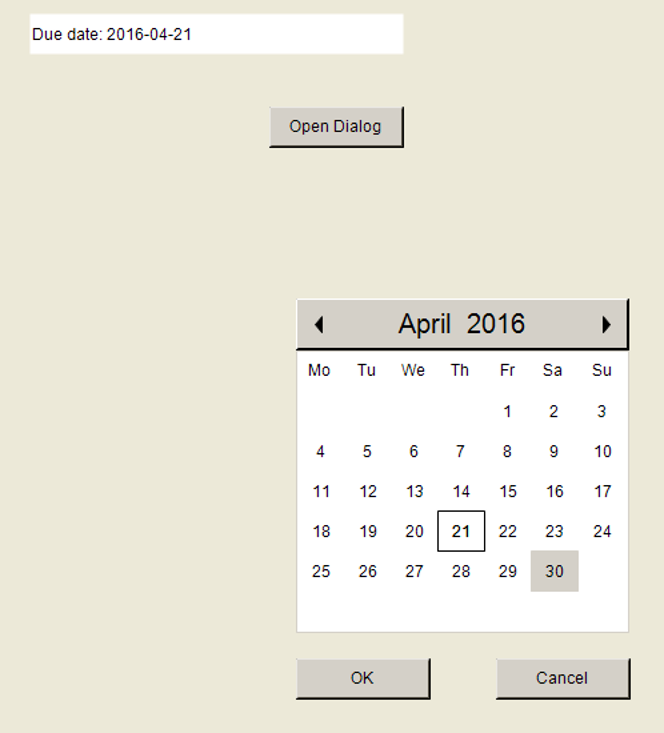
Variable declaration:
                PROGRAM PLC_PRG
                VAR
                dateDue : DATE := DATE#2000-01-01;
                dateCalendar : DATE;
                END_VAR
Implementing an application access to a dialog
In the application code you can implement the access to a dialog that is managed in the dialog manager. The dialog manager automatically instances and manages all visualizations of the type “Dialog”. The access takes place via the internal visualization manager.
First of all, implement the access to the dialog manager by calling the GetDialogManager() method of the internal visualization manager. You can then use the methods of the
dialog manager to program the program sequence of a dialog.
In the following example a button is configured so that it opens the preconfigured
dialog Login when clicked on. The user can enter a name and a password in the dialog. The dialog
Login is contained in the library VisuDialogs. You can also call a self-made dialog in the same way.
Implementing an application access to the dialog Login from the library VisuDialogs:
Requirement: The library VisuDialogs is integrated in the project.
-
Insert a new visualization
visMainunder the application.The visualization editor opens.
-
Drag a button into the visualization editor.
-
Enter in its property “Text”
Login.The button is labelled.
-
Click on “Configure ”in the property “Input configuration OnMouseDown”.
-
Select the input action “Execute ST-Code” and click on
 .
. -
Enter the following function call in the ST editor:
OpenLoginDialog(pClientData);The main visualization contains a button. If a user clicks on the button, the dialog
Loginopens and the functionOpenLoginDialog()is called. -
Click on “Configure ”in the property “Input configuration OnDialogClosed”.
-
Select the input action “Execute ST-Code” and click on
. -
Enter the following function call in the ST editor:
OnLoginDialogClosed(pClientData);If a user closes the dialog, the function
OnLoginDialogClosed()is called.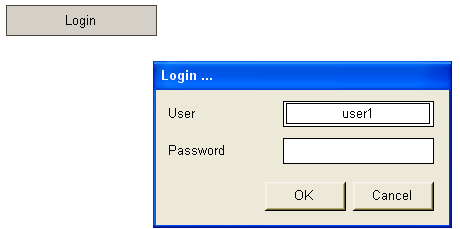
Implementation of the function OpenLoginDialog():
                FUNCTION OpenLoginDialog : BOOL
                VAR_INPUT
                pClientData : POINTER TO VisuStructClientData;
                END_VAR

                VAR
                dialogMan : IDialogManager;
                loginDialog : IVisualisationDialog;
                pLoginInfo : POINTER TO Login_VISU_STRUCT; // Login_VISU_STRUCT contains the parameters defined in the interface of visualization "Login".
                result : Visu_DialogResult;
                stTitle : STRING := 'Login ...';
                stPasswordLabelText: STRING;
                stUserLabelText: STRING;
                stUsername: STRING;
                END_VAR

                dialogMan := g_VisuManager.GetDialogManager(); // The DialogManager is provided via the implicitly available VisuManager
                IF dialogMan <> 0 AND pClientData <> 0 THEN
                loginDialog := dialogMan.GetDialog('VisuDialogs.Login'); // Dialog to be opened is specified
                IF loginDialog <> 0 THEN
                pLoginInfo := dialogMan.GetClientInterface(loginDialog, pClientData);
                IF pLoginInfo <> 0 THEN      // In the following the parameters of the login dialog in the Login_VISU_STRUCT will be read
                pLoginInfo^.stTitle := stTitle;
                pLoginInfo^.stPasswordLabelTxt := stPasswordLabelText;
                pLoginInfo^.stUserLabelTxt := stUserLabelText;
                dialogMan.OpenDialog(loginDialog, pClientData, TRUE, 0);
                END_IF
                END_IF
                END_IF
OnLoginDialogClosed() defines the reaction to the closing of a dialog.
Implementation of the function OnLoginDialogClosed():
                FUNCTION OnLoginDialogClosed : BOOL
                VAR_INPUT
                pClientData : POINTER TO VisuStructClientData;
                END_VAR

                VAR
                dialogMan : IDialogManager;
                loginDialog : IVisualisationDialog;
                pLoginInfo : POINTER TO Login_VISU_STRUCT;
                result : Visu_DialogResult;
                stPassword: STRING;
                stUsername: STRING;
                END_VAR

                dialogMan := g_VisuManager.GetDialogManager(); // The DialogManager is provided via the implicitly available VisuManager
                IF dialogMan <> 0 AND pVisuClient <> 0 THEN
                loginDialog := dialogMan.GetDialog('VisuDialogs.Login'); // Gets the login dialog
                IF loginDialog <> 0 THEN
                result := loginDialog.GetResult(); // Gets the result (OK, Cancel) of the dialog
                IF result = Visu_DialogResult.OK THEN
                loginDialog.SetResult(Visu_DialogResult.None); // Reset to default (none)
                pLoginInfo := dialogMan.GetClientInterface(loginDialog, pVisuClient); // Structure Login_VISU_STRUCT gets read;
                // In the following the structure parameters can be set
                IF pLoginInfo <> 0 THEN
                stPassword := pLoginInfo^.stPasswordpLoginInfo^.stPassword := ''; // Reset the passwword
                stUsername := pLoginInfo^.stUsername;
                END_IF
                ELSIF result = Visu_DialogResult.Cancel THEN
                loginDialog.SetResult(Visu_DialogResult.None); // React on 'Cancel'
                ELSE
                // nothing to do
                END_IF
                END_IF
                END_IF
See also