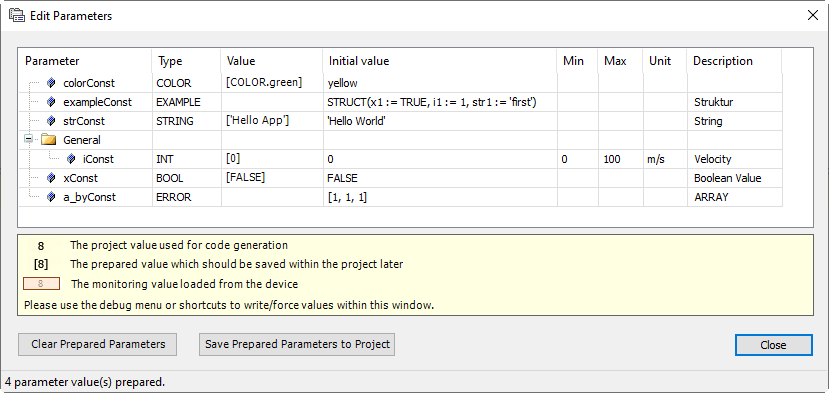
Function: The “Edit Parameters” dialog is used to manage the constant input parameters of a function block.
Call: “CFC → Edit Parameters” menu; context menu or click the “Parameters” function block field
Requirements:
-
A CFC editor is active.
-
A function block is instantiated which has
VAR_INPUT CONSTANTvariables in its declaration.
Function blocks with VAR_INPUT CONSTANT variables are displayed in the editor with the “Parameter” word in the lower left corner of the box.
This functionality applies only to blocks which have been inserted into a CFC with CODESYS >= V3.5 SP4.
Only the CFC editor has this functionality for its VAR_INPUT CONSTANT variables.
In the FBD editor, CODESYS always displays all input parameters on the box, regardless of whether or not they
are declared as VAR_INPUT or VAR_INPUT CONSTANT. CODESYS also does not make a distinction about this in text editors.
Dialog: Edit Parameters
|
“Parameters” |
Name of the constant input variable Example: If the input variable is marked with the |
|
“Type” |
Data type of the variable For a custom data type, this is the DUT name. Example: |
|
“Value” |
Transfer values to the function block instance
TIP: Click into the field to specify the desired value. |
|
“Initial value” |
Initial value from the declaration |
|
“Min” |
Minimum value from the declaration if the variable was marked with the |
|
“Max” |
Maximum value from the declaration if the variable was marked with the |
|
“Unit” |
Unit from the declaration if the variable was marked with the |
|
“Description” |
Comment from the declaration |
|
“Clear Prepared Parameters” |
Deletes prepared values which are displayed in square brackets You can load and run the application in online mode and in that time parameterize the function block instance with values. To do this, specify prepared values for the input variable and click “Debug Write Values”. These values are then prepared here as possible transfer values. TIP: Delete the prepared values if you do not want to use them. NOTE: The command is active when you write a prepared value to a variable in online mode (“Debug Write Values” command). |
|
“Save Prepared Parameters of current object” |
Saves the transfer values and parameters in the project so that they can be used during the next online mode. NOTE: The command is enabled when you have written or forced values in online mode and are back in offline mode. |
|
“Close” |
Accepts the configured values and closes the dialog |
FB_Test function block
TYPE EXAMPLE :
STRUCT
    x1 : BOOL;
    i1 : INT;
    str1 : STRING;
END_STRUCT
END_TYPE

TYPE COLOR :
(
	yellow,
	green,
	blue,
	black
) // Basic data type is INT, default initialization for all COLOR_BASIC variables is yellow
;
END_TYPE


FUNCTION_BLOCK FB_Test

VAR_INPUT CONSTANT
	xConst  : BOOL := FALSE; // Boolean value
	{attribute 'parameterCategory':='General'}
	{attribute 'parameterUnit':= 'm/s'}
	{attribute 'parameterMinValue':= '0'}
	{attribute 'parameterMaxValue':= '100'}
	iConst	: INT := 0; // Integer
	strConst : STRING := 'Hello World'; // String
	exampleConst : EXAMPLE := (x1 := TRUE, i1 := 1, str1 := 'first'); // STRUCT
	colorConst : COLOR := yellow; // ENUM
END_VAR

VAR_OUTPUT
END_VAR

VAR
END_VAR

;

PROGRAM PLC_PRG
VAR

	xStart : BOOL;
	fbTest	: FB_Test;

END_VAR
Fig. 260: Implementation
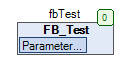
Fig. 261: Dialog with parameters of fbTest