


The multi download tool can be used to update multiple PLCs with firmware or with an application simultaneously.
Firmware update with activated user management
PLC user management remains active after a firmware update or downgrade.
Due to a structural change in PLC user management starting with firmware version 3.5, certain limitations apply when updating PLC firmware from version 3.4 or lower to version 3.5 or higher with activated user management.
If the PLC firmware is updated from version 3.4 or lower to version 3.6 or higher, it must be performed in two steps. First, the firmware must be updated to version 3.5 using Automation Builder. Afterwards, the firmware can be updated to any later firmware version, either usingAutomation Builder or via memory card.
The PLC firmware can be updated using Automation Builder.
This is also required for commissioning processor modules.
A newly delivered CPU has no pre-installed firmware. To guarantee the authenticity of delivered AC500 firmware, processor modules are supplied with a boot loader only. A valid firmware must be downloaded to the processor module. After the download, the PLC becomes operational.
An Automation Builder project is open.
The CPU is in “stop” mode or shows uPdAtE (update) on the display.
After the update, the CPU displays either donE or StoP on the display.
For new modules; the IP address is set. (default IP address: 192.168.0.10)
-
Double-click the CPU “PLC_AC500_V3”.
-
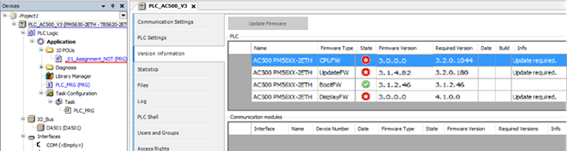
Select “Version information”.
-
Select “Update Firmware”.
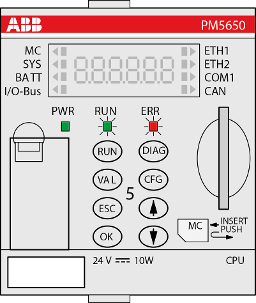
During the update process, the RUN and ERR LEDs toggle (alternating flashing).
-
Wait until the PLC finishes the update.
Firmware updates that include “UpdateFW” changes must be performed in two steps.
First, “UpdateFW” is updated. After completion, select the update button again to execute the “SystemFW” update.
Note: Firmware updates via memory card automatically include both updates in a single step.
A completed update is indicated by a message on the display, either donE, or StoP.

NOTICE
Do not disconnect the power supply during the update process. The PLC may be damaged.
StoP indicates that a restart has been performed by the CPU. When donE is displayed, a manual restart of the CPU may be required, for example by powering off the device. A manual restart may be required for certain older CPU versions or when downgrading to an older firmware version, depending on application settings.
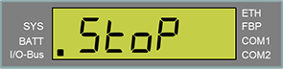
After the restart, the CPU display shows StoP. The update process is complete.
-
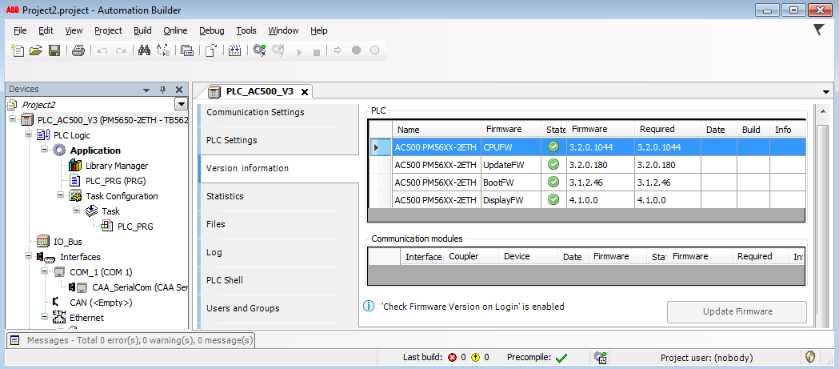
If required, refresh the version information by switching to another tab and back.
Successful firmware update:
Behavior of LEDs during firmware update
|
LED |
LED flashes |
Status |
|---|---|---|
|
RUN and ERR |
Toggling |
Update pending |
|
RUN |
Flashing slow |
Update completed successfully |
|
ERR |
Flashing slow |
Update failed |