


Scripts to execute can be added to and stored in the Automation Builder project. Additionally, parameters can be added to scripts, so that generic scripts can be customized before execution.
Adding a script object to the project
-
In the device tree, right-click on a node (e.g. a PLC node) and click “Add object”.
-
Under “Scripting category” select “Script Add object”.
The 'Add Script' dialog is displayed.
-
Browse and select a script from the file system or create a new script by clicking [Add].
A script is added below the selected node and the editor is opened.
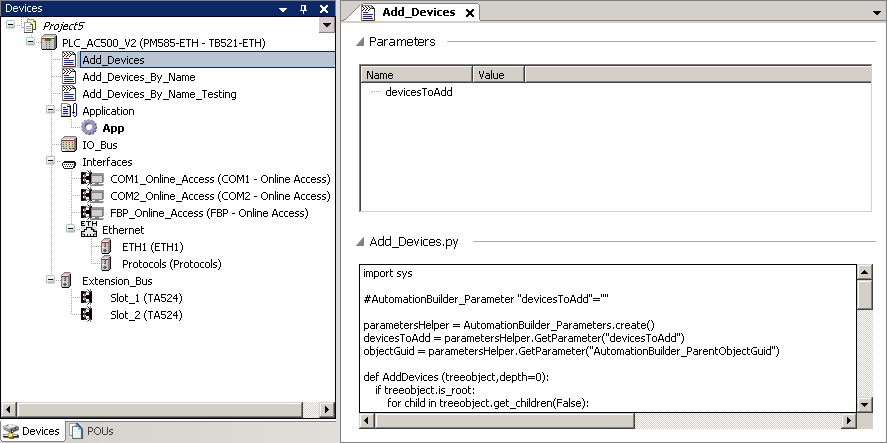
-
The default parameter values are read from the script. The user can edit the default values as required.
Editing scripts within Automation Builder is not supported. You can use an external editor to edit the script and then import it to Automation Builder.
The script objects can be reused within the project via copy-and-paste around the device tree.
Execution
The user can execute the script with the parameter values via the execute button in the editor or via right-click on the script object in the device tree by selecting “Script Execute”.
Import
The user can import the script from the file system. This will replace the contents of the current script object with the contents of the imported file. Optionally, parameter values will be preserved if the imported script has a matching named parameter. In the device tree, right-click on a script object and select “Script Import”.
Export
The user can export the selected script and saved it as a new file in the file system. The exported file does not include any edited parameter values. In the device tree, right-click on a script object and select “Script Export”.
Parameters
The following instructions help the user to create parameters in the python script:
-
Parameters must be defined in the script.
-
Parameters and values are optional.
-
The
ParameterNameand theParameterValuemust be delimited with symbols. The format must be as follows:"#AutomationBuilder_Parameter {"ParameterName"} {= "ParameterValue"}
-
{ParameterName} is the name given to the parameter. This allows the values to be referenced in the python script.
-
{ParameterValue} is the default value given to the parameter. This value can be modified in the editor.
The example below shows the format of the ParameterName and ParameterValue in the script.
-
#AutomationBuilder_Parameter "numWidgets": creates a new parameter called
numWidgets. -
#AutomationBuilder_Parameter "numWidgets" = "4": creates a new parameter called
numWidgetsand initializes to the value 4.
Using parameters within the python script:
-
Parameters can be used in the script by creating an instance of the parameter helper:
parameterHelper = AutomationBuilder_Parameters.create()
-
Individual parameters are retrieved by calling:
GetParameter(parameterName). devicename = parameterHelper.GetParameter("Name")
Python script examples
A set of python script examples are available in the path %Public%\Documents\AutomationBuilder\Examples\Python scripts.