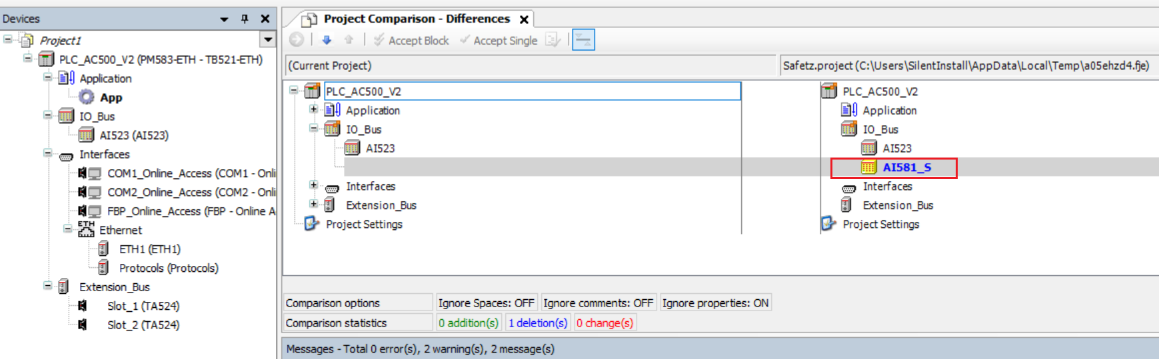
Configuration of a complete PLC or of single devices can be reused within the same project by copy-and-paste the desired nodes in the device tree.
In order to reuse a PLC configuration cross-over projects, the project configuration can be exported and imported afterwards into another project.
An exported project configuration can only be imported to a project with the same Automation Builder version. If the versions are not the same, the import fails with an error message.
Automation Builder performs an integrity check for the PLC configuration before generating the configuration.
Project export
From the menu, select “Project Export Project”. Select the objects to be exported. The configuration of the selected items will be added to an export file (*.export).
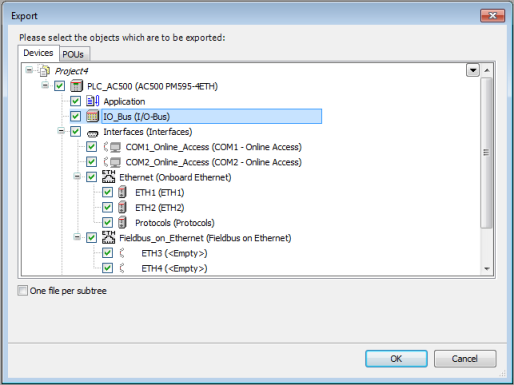
“One file per subtree”: If this option is activated, all objects belonging to the same subtree will be exported into the same export file, otherwise a separate file will be created for each particular object.
Project import
For importing a project a basic and an advanced function is available.
“Basic project import”: Users with a basic or a standard Automation Builder license can perform a basic project import. Command: “Project Import Project”.
A previously exported project configuration is imported into the current project. With this, the current project configuration is overwritten.
In order to supplement the current project with the project configuration of a previously exported project, use the compare function. Command: “Project Compare”.
“Advanced project import”: Users with a premium Automation Builder license can perform an advanced project import. Command: “Project Import Project with compare”. This command allows to compare two projects, to check on differences and to adapt single parts of the project configuration easily.
Basic project import
-
From the menu, select “Project Import Project”.
A previously exported project configuration is imported into the current project. With this, the current project configuration is overwritten.
In order to supplement the current project with the project configuration of a previously exported project, use the compare function. Command: “Project Compare”.
-
Select the export file from the file system and click [Open] to import the project configuration.
An exported project configuration can only be imported to a project with the same Automation Builder version. If the versions are not the same, the import fails with an error message.
Advanced project import
Perform an advanced project import in order to compare two projects, to check on differences and to adapt single parts of a previously exported project configuration easily.
-
From the menu, select “Project Import Project with compare”.
-
Select the export file from the file system and click [Open] to import the project configuration.
The project import is started.
-
Once the project file is imported, a compare view is displayed. The left pane represents the current project, the right pane represents the imported project.

Differences between the current project and the imported project are highlighted in red color.
Additional modules in the current project that are not available in the imported project are highlighted in green color.
Additional modules in the the imported project or deleted modules in the current project are highlighted in blue color.
A summary of all differences within the projects is given in the “Comparison statistics” under the device tree.
-
Every highlighted item of both projects can be handled individually and can either be transferred to the current project or skipped.
-
[Accept Block]: All items of the selected node are transferred to the current project with one click. Use this function for example to copy all nodes of a PLC configuration from the imported project to the current project (select “I/O_Bus” node).
-
[Accept Single]: Only a single item from a node is transferred to the current project. Use this function for example to copy certain I/O modules from the imported project to the current project.
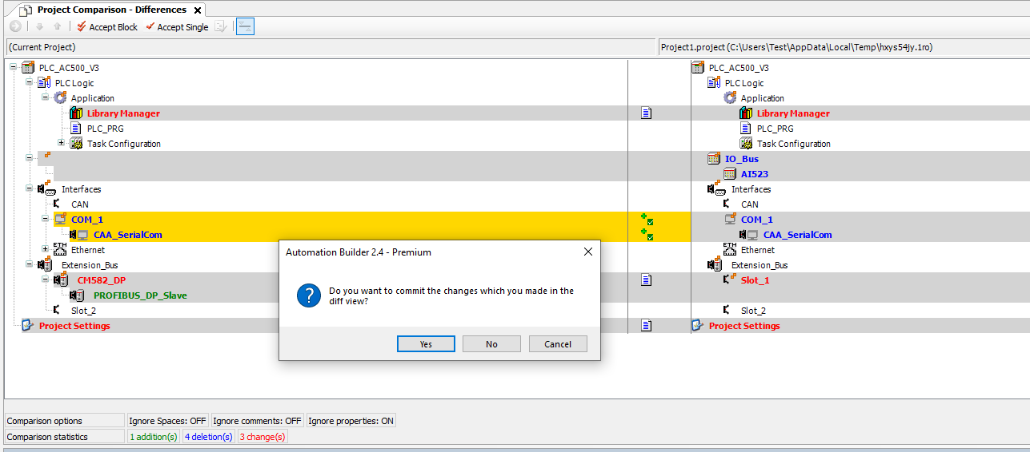
All accepted items are highlighted in the current project in yellow color.
To undo a selection, again, click [Accept Block] or [Accept Single].
To accept all changes on the current project, close the “Project Comparison - Differences” tab and confirm the prompted dialog.
-
-
If in the import project the PLC contains an AC500-S safety module, a security check is performed which requires user authentication:

-
After a successful user authentication the AC500-S safety modules are added to the compare view and can be imported to the current project.