


Adding a panel object
-
Right-click in the Automation Builder device tree and click “Add object Panel-CP600”
-
Click on “CP600 Control Panel” and click “Add object”
A Control Panel object is added to the Automation Builder device tree.
Starting a Panel Builder project
-
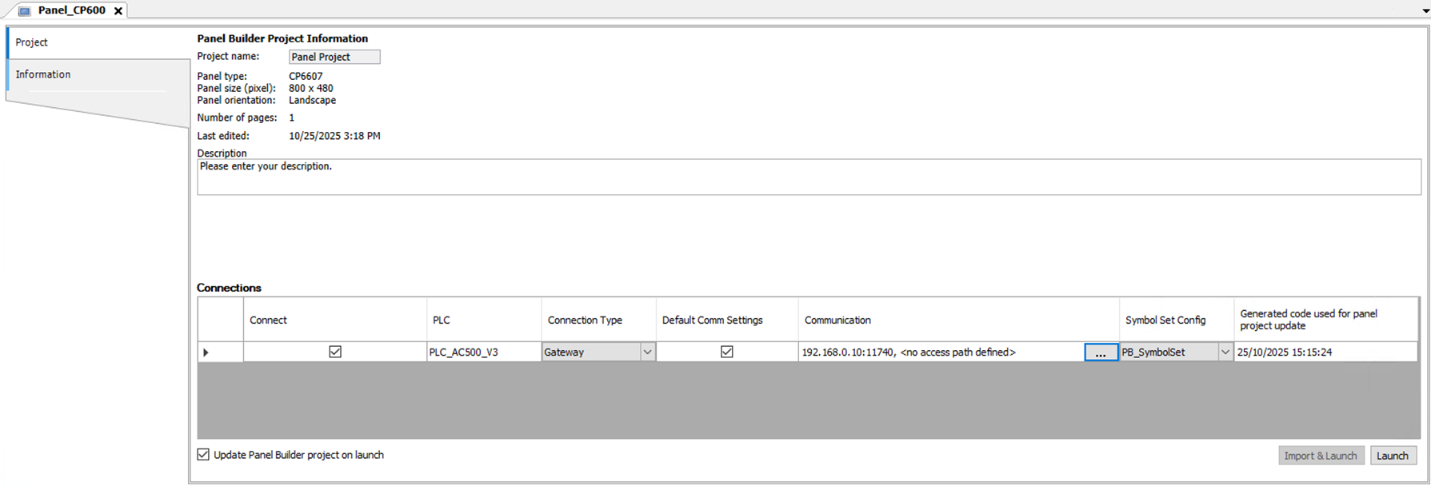
In the device tree, double-click “Panel CP600” object to start Panel CP600 screen.
-
All available PLCs in the Automation Builder project are automatically selected to be connected to the panel. You can deselect those PLCs which should not be connected.
-
The default “Communication” settings of the PLC are automatically used if available. You can define/modify those by clicking the button within the communication field of the “Connections” table.
If you want to use dedicated “Communication” settings you can deselect the checkbox “Default Comm Settings” and enter those via the button within the communication field of the “Connections” table.
-
The “Update Panel Builder project on launch” checkbox is enabled by default and can be unchecked if no synchronization is desired.
-
Click the “Launch” button to start the Panel Builder.
If no Panel Builder project is created yet, a corresponding new project wizard is shown within the Panel Builder.
If an already existing Panel Builder project shall be used, you can import it by clicking the “Import & Launch” button. A corresponding editor is opened to select the project file in the file system. The selected project will then be embedded in the Automation Builder project and launched.
If you update Automation Builder project with new variables and data types or if there are changes in existing Automation Builder project variables and data types (new, modified, deleted), recompile CODESYS application to refresh the symbol file, then launch Panel Builder editor.
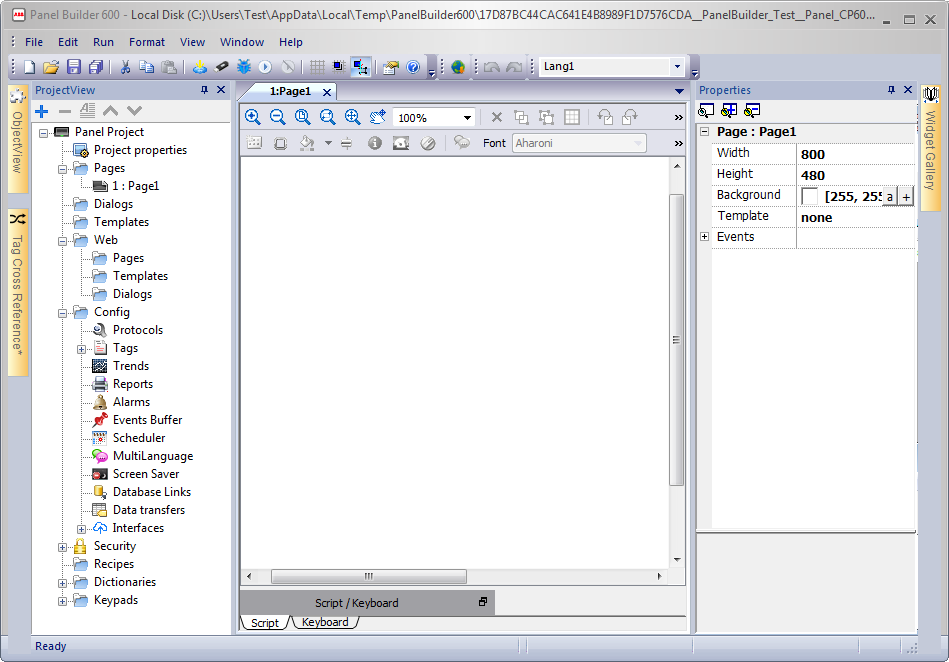
The panel projects can be compared in Automation Builder using the “Compare Objects” option.
Changing panel type
-
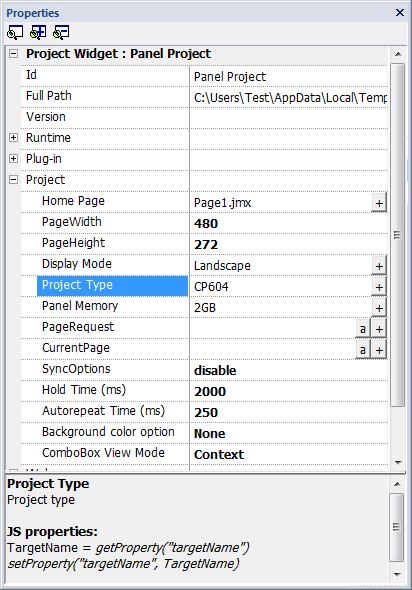
In the Panel project, double-click “Project properties” to change the panel type to the panel which is used.
The Properties dialog is displayed.
-
In the Properties dialog, expand “Project” and click “Project Type ”.
A project wizard dialog is displayed.
-
Select the desired panel type and click “Finish”.
Project information
The project information view provides an overview of the Panel Builder project without opening the project. To open the project information, double-click the “Panel_CP600” object.
The project information is updated every time the Panel Builder project is edited. You can rename the Panel Builder project via context menu.
The project name is internally used as a base for the Panel Builder project file name. Therefore, the project name has to comply with general file name restrictions.
The Panel Builder project information lists all available PLCs in the Automation Builder project and shows if they are connected to the Panel Builder project.
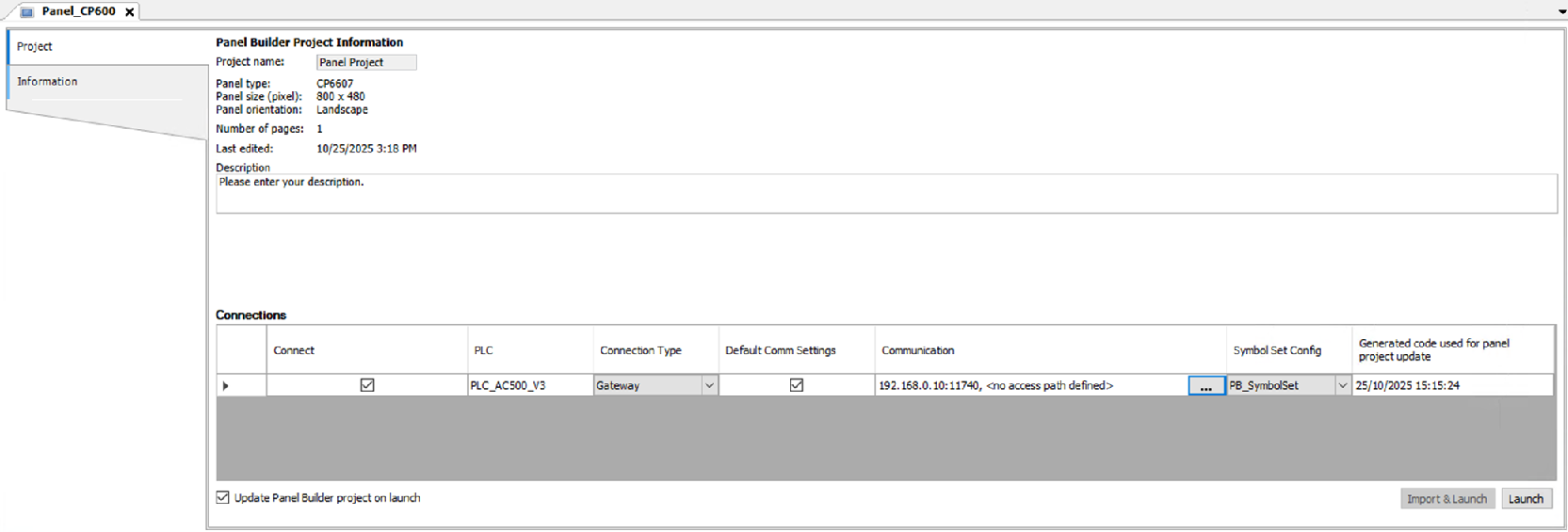
The latest application state which was used to update the Panel Builder project can be seen in the column “Generated code used for panel project update”. It shows the latest generate code date per PLC updated to the Panel Builder project.