


To display a text file located on the controller, you need controls for selecting, opening, and closing the file in addition to the “Text Editor” element. As an option, additional controls can also be used to set up a text search in the file.
placeholder
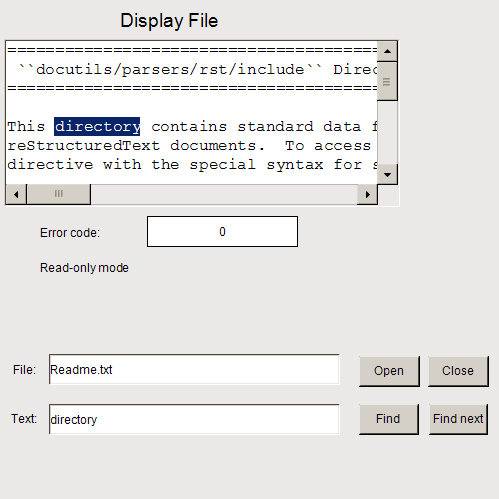
Configuring the “Text Editor” element, example
-
Drag a “Text Editor” element to the visualization editor.
-
For example, declare the control variables for the element as global variables in the
GVLobject.For more information, see the declaration of the control variables.
-
For the “Text Editor”, configure the “Editor Mode” property with “Read Only”.
-
Continue configuring the “Control variables” property.
Assign the following variables there:
-
“Control variables File Variable”:
g_sFileName -
“Control variables File Open”:
g_bFileOpen -
“Control variables File Close”:
g_bFileClose -
“Control variables File New Variable”:
g_bFileNew -
“Control variables File Save Variable”:
g_bFileSave -
“Control variables Edit Variable”:
g_sEditSearchFor -
“Control variables Edit Find”:
g_bEditFind -
“Control variables Edit Find Next”:
g_bEditFindNext
-
Declaration of control variables
VAR_GLOBAL
    g_sFileName: STRING := 'Readme.txt';
    g_bFileOpen : BOOL;
    g_bFileClose: BOOL;
    g_bFileNew: BOOL;
    g_bFileSave: BOOL;
    g_sEditSearchFor : STRING;
    g_bEditFind : BOOL;
    g_bEditFindNext : BOOL;
    g_usiErrorHandlingVarForErrorCode: USINT;
    g_bVarForContentChanged : BOOL;
    g_bVarForReadWriteMode: BOOL;
END_VAR
Configuring control elements for file selection
-
Add a “Label” element.
-
Configure the “Texts Text” property with
File. -
Next to it, add a “Rectangle” element where the user can then enter the file name:
-
Configure the “Texts Text” property with
%s. -
Configure the “Texts Text variable” property with
g_sFileName. -
Configure the “Input configuration OnMouseclick” property with “Write Variable”.
In the “Input configuration” dialog, select “Input type” as the “Text input”.
Select the “Use text output variable” option.
The box to input the file name is configured.
-
Add a “Button” property for opening the file.
-
Configure the “Texts Text” property with
Open. -
Configure the “Input configuration OnMouseclick” property with “Switch Variable”.
Assign
g_bFileOpenas the variable.The
Openbutton is configured. -
Add another “Button” button for closing the file.
-
Configure the “Texts Text” property with
Close. -
Configure the “Input configuration OnMouseclick” property with “Switch Variable”.
Assign
g_bEditFileas the variable.The
Closebutton is configured.
Controls for searching for a text
-
Add a “Label” element.
-
Configure the “Texts Text” property with
Text. -
Next to it, add a “Rectangle” element for entering the text to be searched for.
-
Configure the “Texts Text” property with
%s. -
Configure the “Texts Text variable” property with
g_sEditSearchFor. -
Configure the “Input configuration OnMouseclick” property with “Write Variable”.
In the “Input configuration” dialog, select “Input type” as the “Text input”.
Select the “Use text output variable” option.
The rectangle is configured.
-
Add a “Button” property for starting the search.
-
Configure its “Texts Text” property with
Find. -
Configure the “Input configuration OnMouseclick” property with “Switch Variable”.
Assign
g_bEditFindas the variable. -
Also add the “Execute ST code” action.
Program the action with:
g_bEditFindNext := FALSE;The button is configured.
-
Add another “Button” element.
-
Configure the “Texts Text” property with
Find Next. -
Configure the “Input configuration OnMouseclick” property with “Switch Variable”.
Assign
g_bEditFindas the variable. -
Also add the “Execute ST code” action.
Program:
g_bEditFindNext := TRUE;The button is configured.