

-
Select the
Step0step. -
Click “SFC Add Entry Action”.
By default, you are prompted to select the duplication mode for the step actions. You decide whether the reference information about the existing step action objects is copied when the step is copied, or the objects are "embedded". Embedding results in new step action objects being created when the step is copied. The duplication mode is defined in the “Duplicate when copying” step property. As long as this property is disabled, the copied steps call the same actions as the current step.
You can deactivate the prompt completely in the SFC properties.
The display of "embedded" objects in the “Devices” and “POUs” views can be deactivated by means of a menu command.
-
For this example, accept the “Copy reference” default setting and click “OK” to confirm.
The “Add Entry Action” dialog opens.
-
Specify the name as
Step0_entryand select the “Structured Text (ST)” implementation language. Click “Add”.CODESYS inserts the
Step0_entryaction below the POU in the device tree and opens the action in the editor.In the
Step0_entryentry action, you program statements to be executed one time when theStep0step becomes active. -
Close the editor of
Step0_entry.The
Step0step is now marked with anEin the lower left corner. Double-click this marker to open the editor.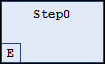
The entry action
Step0_entryis now available in the properties of the step in “Entry action”. Other actions can also be selected there as needed. -
Select the
Step0step. Press [Ctrl]+[V] to copy the step.The same entry actions inserted above are available In the inserted copy of the step. The new step then calls the same exact action.
 Permalink