



NOTICE
Recommendations for data protection
In order to minimize the risk of data security violations, we recommend the following organizational and technical actions for the system where your applications are running. Whenever possible, avoid exposing the PLC and control networks to open networks and the Internet. Use additional data link layers for protection, such as VPN for remote access, and install firewall mechanisms. Restrict access to authorized persons only, change any existing default passwords during the initial commissioning, and change them in regular intervals.
NOTICE
Detailed information on the concept and use of device user management is provided in the "Handling of Device User Management" chapter.
There you will also find the following instructions on how to use the editor:
-
First-time login to the controller for editing and viewing its user management
-
Setting up a new user in the user management of the controller
-
Changing of access rights to controller objects in the user management of the controller
-
Loading user management from a *.dum file, modifying it, and downloading it to the controller in offline mode
On this tab of the ⮫ Device Editor, you define the device access rights of device users to objects on the controller. As in the project user management, users must be members of at least one user group and only user groups can be granted certain access rights.
For more information, see: ⮫ “Handling of Device User Management ”
Requirements for the “Access Rights” tab to be displayed:
-
The “Show access rights page” option has to be selected in den CODESYS options in “Device editor” category.
Note that this CODESYS option can be overwritten by the device description.
Requirements for the access rights to be granted to user groups
-
A component for the user management has to be available on the controller. That is the primary requirement.
-
Users and user groups have to be configured on the “Users and Groups” tab.
|
In the tree structure, the objects are listed to which actions can be executed at runtime. The objects are each assigned by their object source and partially sorted in object groups. In the “Rights” view, you can configure the access options for a user group to a selected object. |
|
Object source (root node)
A description of the objects is located in the Overview of the objects table. |
|
Object groups and objects (indented) Example: “Device” with child nodes “Logger”, “PlcLogic”, “Settings”, “UserManagement”. |
|
In general, the subobjects inherit the permissions from the root object (“Device” or “/”). This means that if a permission of a user group is denied or explicitly granted to a parent object, then this first affects all child objects. The table applies for the object that is currently selected in the tree. For every user group, it shows the rights currently configured for the possible actions on this object. 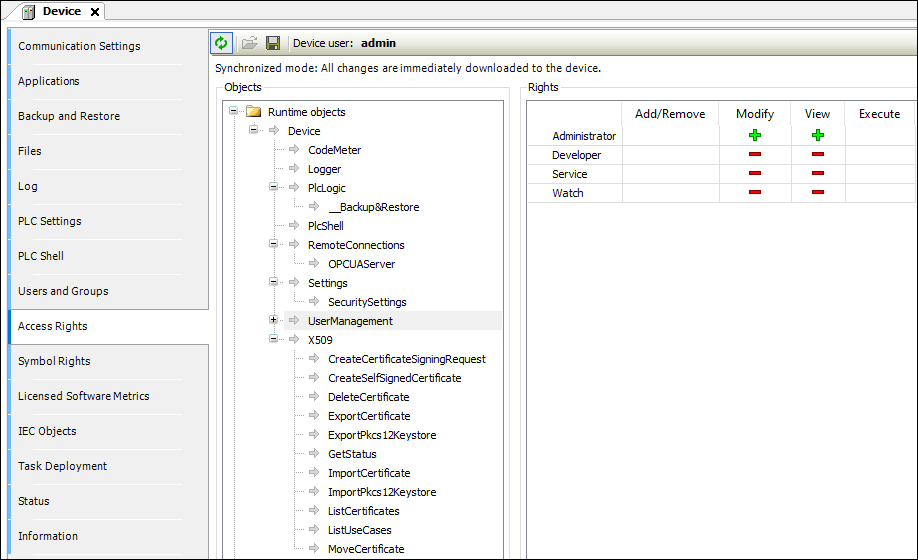 Possible actions on the object:
|
|
|
When an object is clicked, a table on the right side shows the access rights of the available user groups for the selected object. This allows you to quickly see:
Meanings of the symbols
Change the permission by clicking the symbol. |
 : Access right granted explicitly
 : Access right denied explicitly
 : Access right granted through inheritance
 : Access right denied through inheritance
 : The access right was not granted or denied explicitly and also not inherited by
the parent object. Access is not possible.
: The access right was not granted or denied explicitly and also not inherited by
the parent object. Access is not possible.
Example
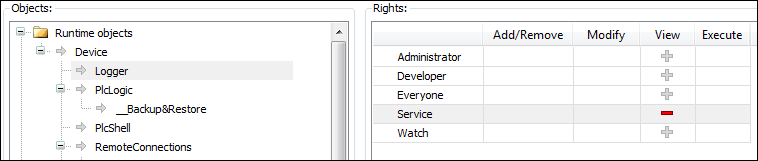
The “Logger” object on the “Access Rights” tab was created by the "Logger" component and controls its access rights. It is located directly below the “Device” runtime object.
The possible access rights for this object can be granted only for the “View” action.
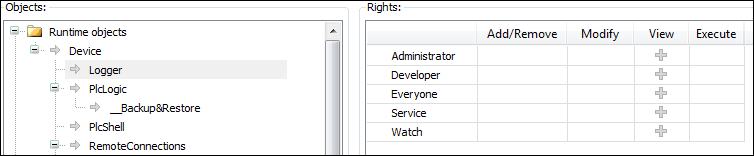
Initially, each object has a read access. This means that every user can read the "Logger" of a controller. If this access right should be denied for a single user group (“Service” in the example), then the read access to the logger object has to be denied explicitly.
-
See also:⮫ Show access rights page
-
See also:⮫ Users and Groups