


The "UaExpert" OPC UA Client is freely accessible software that you can download from the Internet. You can use this client to connect to the CODESYS OPC UA Server. The following description refers to this program. Other OPC UA Clients work in a similar way.
-
Start the UaExpert program.
-
Click “Server Add”.
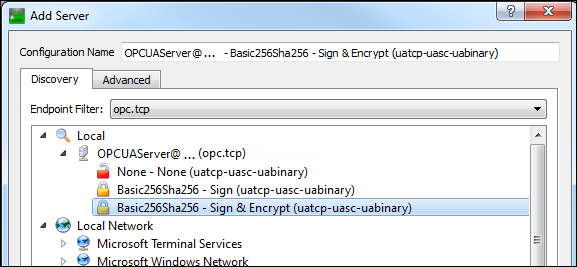
The “Add Server” dialog opens.
-
In the tree view, expand “Local OPCUAServer@”.
-
Select the connection type “Basic256Sha256 – Sign & Encrypt (uatcp-uasc-uabinary)” and click “OK” to close the dialog.
-
Click “Server Connect”.
The “Certificate Validation” dialog opens with an error message.
-
Select the “Accept the server certificate temporarily for this session” option and click “Continue”.
-
In CODESYS, click the
 symbol.
The view is refreshed.
-
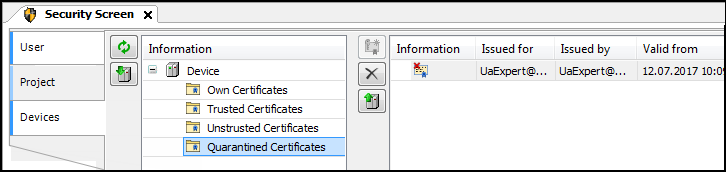
Select the “Quarantined Certificates” folder.
The “UaExpert@” client certificate is displayed in the right view.
-
Drag the certificate to the “Trusted Certificates” folder.
Now the client certificate is classified as "trusted" by the server.
-
In the UaExpert client, click “Server Connect”.
The “Certificate Validation” dialog opens with an error message.
-
Select the “Accept the server certificate temporarily for this session” option and click “Continue”.
The connection is established and objects are displayed in the “Address Space” view.