


Symbol: 
Function: This command opens the “Project Comparison” dialog. In this dialog, you define the reference project to compare with the current project. You configure the comparison process by means of options. When the dialog is exited, the comparison starts and the result is shown in the view “Project Compare - Differences”.
Call: Menu bar: “Project Compare”.
Requirement: A project is open.
See also
Dialog 'Project Comparison'
|
“Project on disk” |
Path of the reference project on the file system. |
|
“Project in a source control database” |
“Host”: Name of the host where the source code management is located. “Port”: Number of the port for connecting to the source code management. “Location”: Path of the reference project. Requirement: The project is linked to source code management. |
|
“Ignore whitespace” |
|
|
“Ignore comments” |
|
|
“Ignore properties” |
|
 : Whitespace differences between the current project and the reference project are
ignored.
: Whitespace differences between the current project and the reference project are
ignored.|
“OK” |
Starts the project compare and displays the result in the view “Project compare - Differences”. |
View 'Project Comparison' - 'Differences'
The project compare view opens when you click “OK” to close the “Project Compare” dialog.
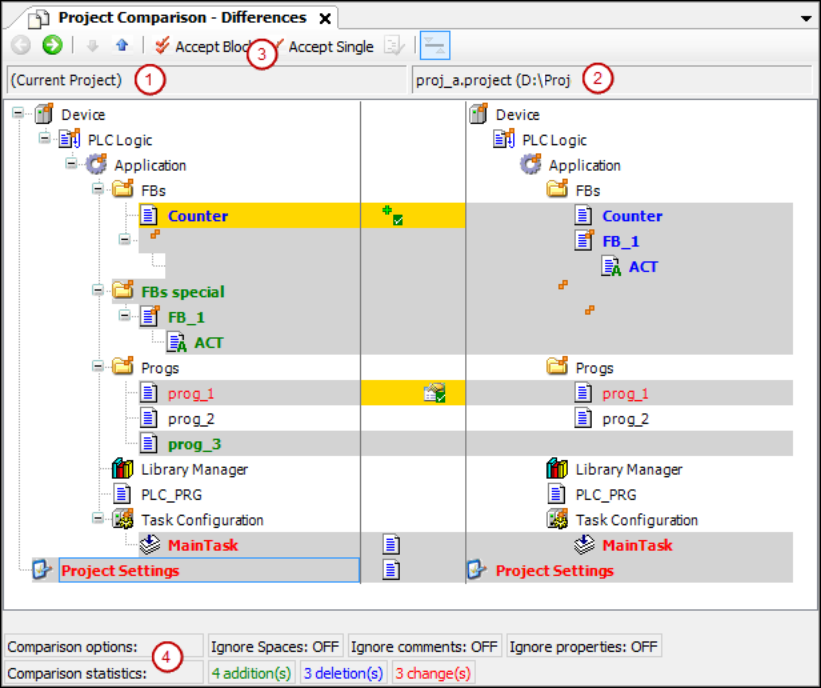
(1) Object tree of the current project
(2) Object tree of the reference project
(3) Command 'Accept Block', command 'Accept Single'
(4) Compare options, configured in 'Project Compare' dialog
    Compare statistics: added, deleted, and changed objects
|
|
Switches to the detailed compare view “Project Comparison' - '<object name> Differences” for the object selected in the tree. Alternative: Double-click the object. |
|
|
Selects the next bottom object in the device tree where differences were detected. |
|
|
Selects the next top object in the device tree where differences were detected. |
|
|
The block (selected object with all subordinate objects and units) is selected for acceptance from the reference block to the current block. Repeated clicking of |
|
|
The object is selected in the current object for acceptance from the reference line. |
|
|
Requirement: The properties, access rights, or contents of the objects selected in the object tree are different. Opens the “Accept” dialog. |


|
Black font |
Objects are identical. |
|
Object name with |
Child objects of the object are different |

|
Gray highlight |
Objects are different. |
|
Gray highlight + bold blue font |
Object is only in the reference project. |
|
Gray highlight + bold green font |
Object is only in the open project (not in reference project). |
|
Gray highlight + red font + |
Object has different properties. |
|
Gray highlight + red font + |
Access rights of object and reference object are different. |
|
Gray highlight + bold red font + |
Implementation of objects is different. Double-click the line to display the object-specific compare view. |


|
Yellow highlight |
Object is activated for acceptance. |
|
Yellow highlight + |
Adding the reference object to the open project is activated. |
|
Yellow highlight + |
Deleting the object (in the open project) is activated. |
|
Yellow highlight + |
Acceptance of the properties of the reference project is activated. |
|
Yellow highlight + red font + |
Acceptance of the access rights of the reference project is activated. |
|
Gray highlight + bold red font + |
Acceptance of the implementation of the reference project is activated. |


|
“Compare options” |
Defined comparison options in the “Project Comparison” dialog. |
|
“Compare statistics” |
Number of additions, deletions, and changes in the current project, as compared to the reference project. “Change” means differences of an object available in both projects. |
|
|
The dialog prompt opens: “Do you want to commit the changes which you made in the diff view?” “Yes”: The contents, properties, or access rights of the objects highlighted in yellow are modified in the project. Now they correspond to the reference project. Then the project compare view is closed completely. |

View 'Project Comparison' - '<object name> Differences'
Function: Detail compare view
Call in the project compare view:
-
Select an object that is identified as having different contents which you need to view in detail. Click
 .
. -
Double-click the object.
|
|
Switch back to the project compare view. |
|
|
Selects the next line below in the code where differences were detected. |
|
|
Selects the next line above in the code where differences were detected. |
|
|
The block (with all subordinate lines) is selected for acceptance of the reference blocks into the current project. A block in the detailed compare view consists of the unit where the cursor is located and all corresponding units that have the same difference markers. A unit is a line, network, or element. Subsequent lines of a line are examples of corresponding units. Repeated clicking of |
|
|
The line is selected in the current object for acceptance of the reference line. |
|
|
Switches between the default display where different units (lines, networks, elements) are displayed in red and another display: The units are displayed as recently added in the open project. In the reference project, they are displayed as deleted. Available within the detailed compare view only. Note: Depending on the display, detected differences in the statistics are counted as changed, inserted, or deleted. |


|
Black font |
Objects are identical. |
|
Gray highlight + bold blue font |
Code is only in the reference project. |
|
Gray highlight + bold green font |
Code is only in the current project (not in reference project). |
|
Yellow highlight |
The object is activated for acceptance. |
|
|
The dialog prompt opens: “Do you want to commit the changes which you made in the diff view?” “Yes”: The code highlighted in yellow is accepted into the project. The code corresponds to the reference project. Then the detailed view is closed and the project view is displayed. You can continue working with project compare. |
Dialog 'Accept'
|
“Access rights” |
|
|
“Accepted groups” |
Grouping with access rights accepted by the reference project. A group is accepted if it is present in both projects with different access rights. Example: |
|
“Unaccepted groups (missing in a project) ” |
The group is not accepted if it is not present in one of the two projects. |
|
“Properties” |
Requirement: The properties of the reference object and object are different. |
|
“OK” |
Settings are accepted. |