


The multi download tool can be used to update multiple PLCs with firmware or an application at the same time.
The PLC firmware can be updated via Automation Builder.
This is also necessary for commissioning CPUs.
A very new CPU has no pre-installed firmware. To guarantee the authenticity of delivered AC500-eCo firmware, V3 CPUs are delivered with a boot loader only. You need to download a valid firmware to the CPU. After download, the functionality of the CPU is given.
An Automation Builder project with an AC500-eCo V3 CPU is open.
CPU is in "stop" mode without firmware.
The power LED is ON.
For new modules: IP address is set. (The default IP address is 192.168.0.10)
-
Double-click CPU “PLC_AC500_V3”.
-
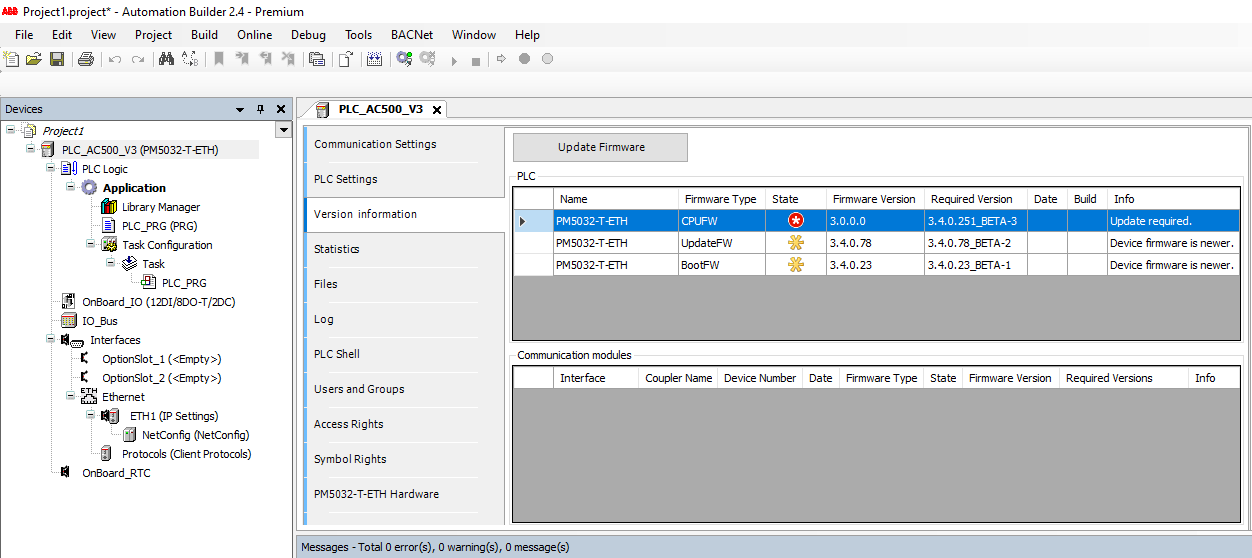
Select “Version information”.
-
Select [Update Firmware].
While the update process is running, the RUN and ERR LEDs are toggling, i.e., they are flashing alternating.
-
Wait for the PLC to finish the update.

NOTICE
Do not disconnect the power supply during the update process! The PLC could be damaged.
-
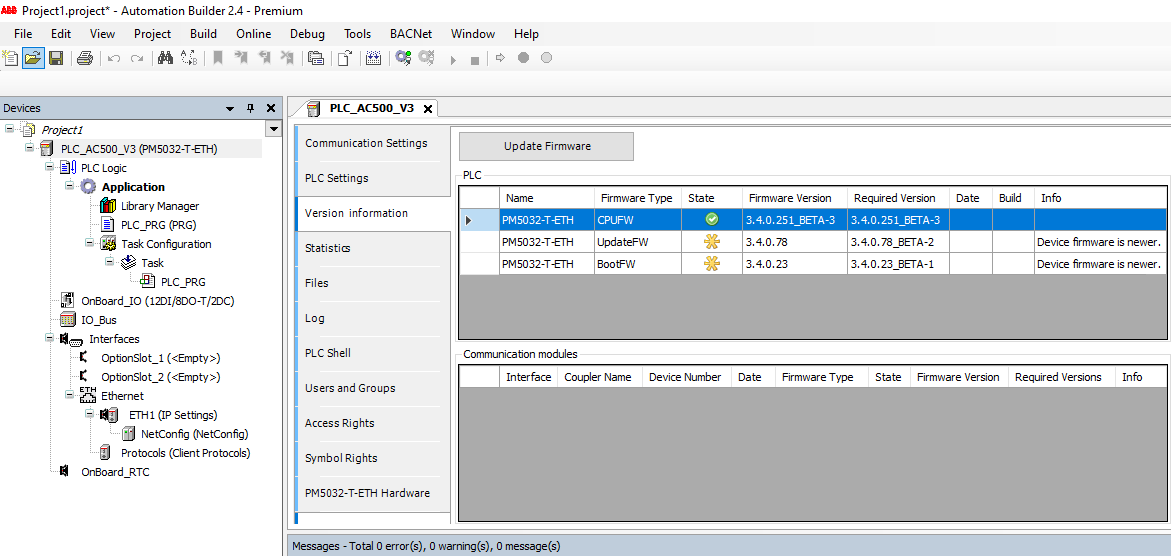
If necessary, refresh the version information by switching to another tab and back.
Successful firmware update:
Behavior of LEDs during firmware update
-
CPU without firmware, only the power LED is on.
-
While the firmware update process is running, the RUN and ERR LEDs are toggling, i.e., they are flashing alternating.
|
LED |
LED flashes |
Status |
|---|---|---|
|
RUN and ERR |
Toggling |
Update pending |
|
RUN |
Flashing slow |
Done successful |
|
ERR |
Flashing slow |
Done failed |
-
CPU with installed firmware, only the power LED is on.
-
If the CPU is running, then the RUN LED is on.
-
If the CPU is in STOP mode, the RUN LED is off.