


The device repository of Automation Builder manages a pool of devices that can be used in the PLC configuration.
Devices are installed or uninstalled using the “Device Repository” dialog box. During installation, the system reads the device description files. These files define the device properties for configurability, programmability, and possible connections to other devices.
Devices provided in the device repository can be used by adding them to the device tree of the project.
Install device descriptions (DevDesc)
How to install a new or updated device description (DevDesc) in Automation Builder is described in the application note ⮫ AC500 device description.
Dialog device repository
-
Select “Tools Device Repository”.
The “Device Repository” dialog box opens.
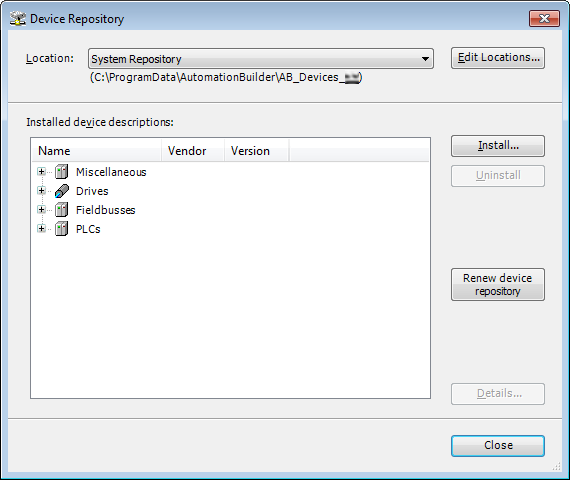
[Edit Locations]: Changes the default repository location. Devices can be managed at different locations.
[Install] / [Uninstall]: Installs or uninstalls devices.
[Renew device repository]: Updates the device list, e.g. after uninstalling a device.
[Details]: Displays technical information of the selected device.
-
Select the install location. The “System Repository” is set by default.
Installing devices
The device repository cannot be modified manually, e.g. by copying or deleting files. Always use the “Device Repository” dialog box to add or remove devices.
-
Select [Install] and choose the required file format.
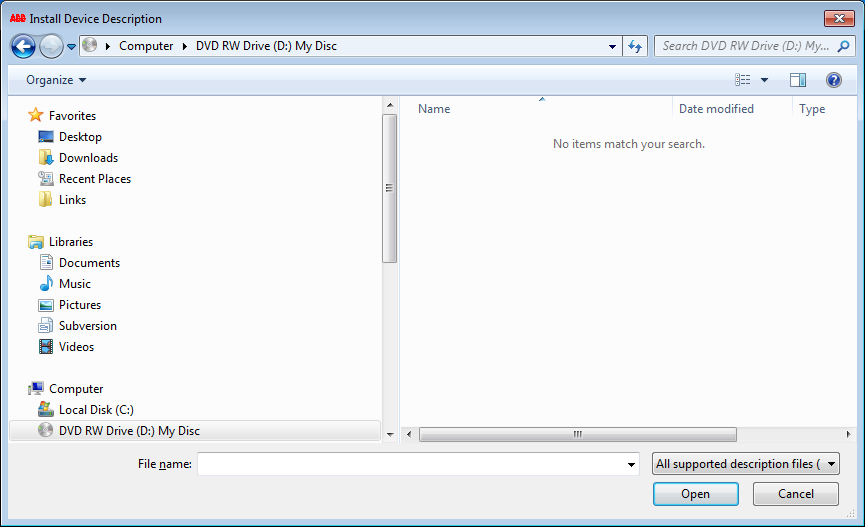
The “Install Device Description” dialog opens.
-
Select the file path of the device description.
-
Select the required device description file type.
All available device descriptions of the selected file type are listed.
-
Select the required device description and select [Open].
Automation Builder adds the device description to the corresponding category in the repository.
If errors occur during installation, for example missing files referenced by the device description, Automation Builder displays the errors in the lower section of the “Device Repository” dialog box.
During installation, the device description files and all referenced files are copied to an internal location. Changes to the original files have no effect on the internal repository.
Changes only take effect after reinstalling the corresponding device(s). Verify the version number shown in the information section of the device.
Uninstalling devices
Select the device to be removed and select [Uninstall].
The device is removed from the list.
Uninstalled devices that are used
in existing projects are indicated by the  symbol. These devices are no longer configured correctly.