


Firmware packages can be downloaded from ⮫ ABB website or exported from Automation Builder.
In Automation Builder, it can be selected whether only the firmware or both the firmware and the boot project are exported. If the boot project does not yet exist, it is created automatically.
The memory card contains the PLC firmware, the firmware of the communication modules, the application, the visualizations and all related objects (for example text lists).
-
Fig. 234: Example
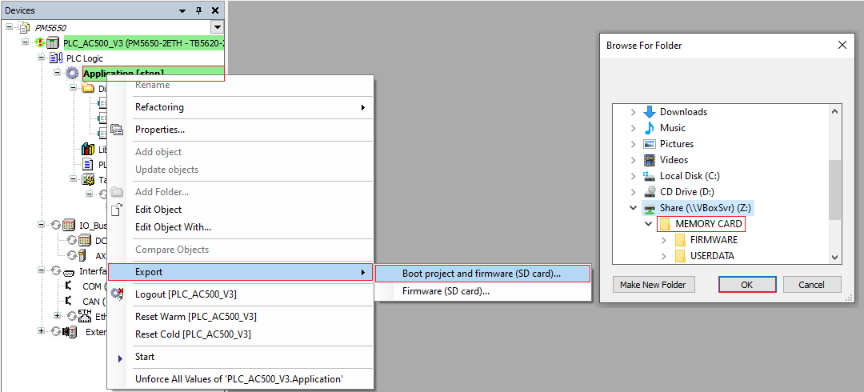
Right-click “Application” in the device tree.
-
Select “Export Boot project and firmware” or “Export Firmware”.
-
Choose a location for the export folder.
Select [Make New Folder] and type in “MEMORY CARD”.
-
Select [OK] to add the folder.
-
Select folder “MEMORY CARD”.
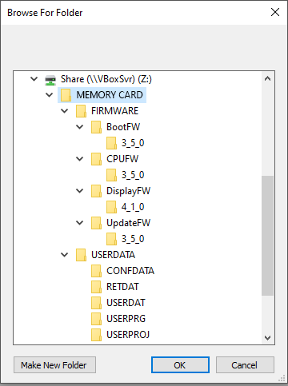
The “MEMORY CARD” structure is created and the firmware and application are exported.
The created “MEMORY CARD” folder does not contain user data, remanent data, configuration data, safety PLC power dip data or the safety PLC password.
Add this data if required by the application in use.
-
Copy all subfolders and files from the “MEMORY CARD” folder to a memory card.
The copy process can be performed using Automation Builder with the memory card inserted in the processor module, or using a PC with a suitable memory card reader.
Copy process with Automation Builder software
-
Insert memory card into the processor module.
-
Connect the PC to the processor module using an Ethernet cable.
-
Log in to the processor module in Automation Builder.
-
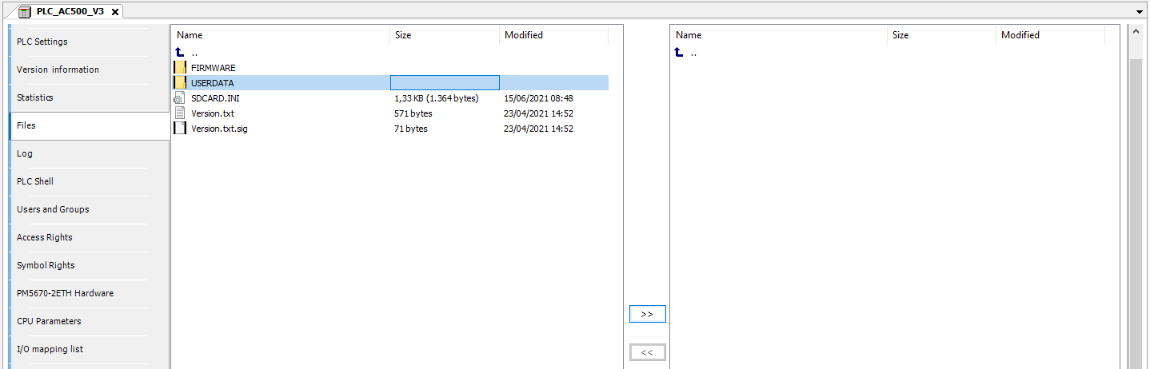
Double-click the processor module in the device tree and select “Files”.
-
On the right side, select and open the “sdcard” folder.
-
On the left side, select all subfolders and files of the “MEMORY CARD” folder, but not the folder itself.
-
Copy the selected subfolders and files from the left side to the memory card by clicking
 on the right side.
Copy process on the PC
-
Insert the memory card into the PC.
-
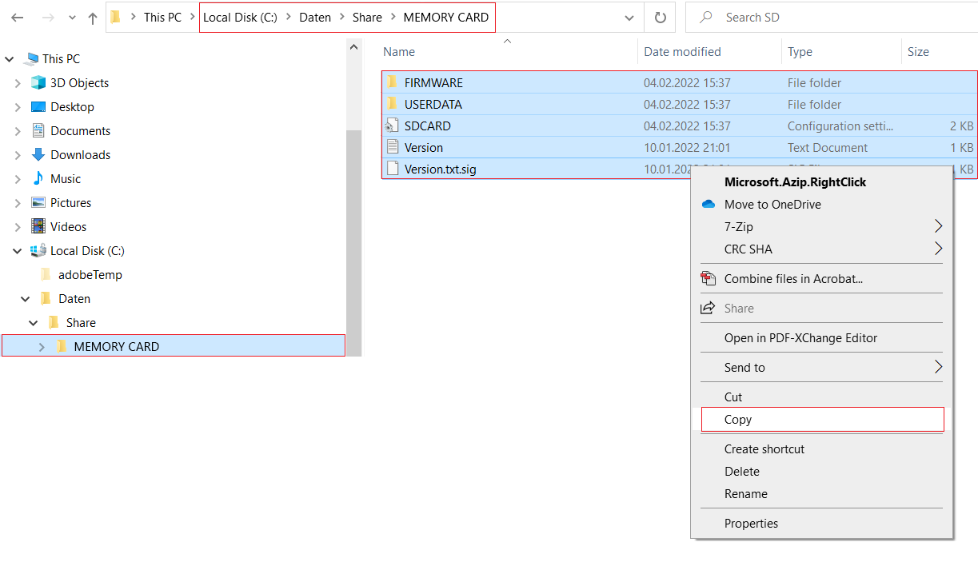
Select all subfolders and files of the “MEMORY CARD” folder, but not the “MEMORY CARD” folder itself, and copy them.
-

Select the memory card and paste the copied subfolders and files.