

-
Create the
Script Commandsfolder in one of the storage locations.C:\Users\<username>\AppData\Local\CODESYS
-
Create executable Python files there.
Example:
File
copy.pyprint("The script COPY.PY is executed")File
delete.pyprint("The script DELETE.PY is executed") -
Create the ICO files for the scripts.
Example:
Copy_before.ico,Copy_below.ico,CopyAll.ico -
Create a configuration file
config.jsonthere.The folder
Users\<username>\AppData\Local\CODESYS\Script Commandshas the following content: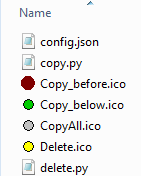
-
Open
config.jsonand add the outlined call information.[ { "Name": "Copy Before", "Desc": "Copy something", "Icon": "Copy_before.ico", "Path": "copy.py }, { "Name": "Copy Below", "Desc": "Copy something", "Icon": "Copy_below.ico", "Path": "copy.py" }, { "Name": "Copy All", "Desc": "Copy something", "Icon": "CopyAll.ico", "Path": "copy.py" }, { "Name": "Delete", "Desc": "Delete something", "Icon": "Delete.ico", "Path": "delete.py" } ] -
Start CODESYS.
The script files, configuration file, and symbol files are read and provided in the “Tools Customize” dialog on the “Command Icons” tab, in “ScriptEngine Commands” category.
-
Open the dialog “Tools Customize” and click on the tab .
-
Select the empty toolbar there and click the “Add Toolbar” button.
A line editor opens at the empty toolbar.
-
Type in a name (example:
User defined toolbar).The custom toolbar is displayed in the CODESYS window.
-
Add the recently imported commands and close the dialog.
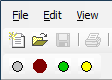
-
Click one of the icons.
The following output is displayed in the message view.
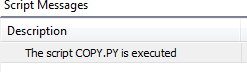

 Configuration and programmingEngineering interfaces and toolsScripting with Python...PythonExecute Script
Calling Scripts from Toolbar Icons
Configuration and programmingEngineering interfaces and toolsScripting with Python...PythonExecute Script
Calling Scripts from Toolbar Icons

